
Last Updated: August, 2026 | 7 minute read

A website’s performance often shapes a visitor’s first impression. Slow pages frustrate users, causing them to leave before exploring further. Site speed is not just about user satisfaction. Search engines also consider it when ranking pages. The good news is that dramatic improvements don't require complex technical skills or weeks of work. With the right hosting foundation, transforming a sluggish site into a high-performance platform can happen remarkably fast.
A slow website costs you visitors, revenue, and search engine rankings. If you want to speed up your website with a faster hosting service, start by measuring your current performance, confirm whether hosting is the bottleneck, then move to a faster setup such as VPS, cloud, or managed WordPress hosting and optimize it with caching and a CDN for lasting gains.
Over 50% of users expect sites to load in under 2 seconds, and 53% of mobile visitors abandon sites taking over 3 seconds to load, so hosting performance directly affects user experience, conversions, and SEO.
For website owners, developers, agencies, and business operators, this guide walks through the full process: measuring key speed metrics, diagnosing hosting limits, choosing a faster hosting type, migrating safely, and tuning your new platform with caching, CDN integration, code and image optimization, and ongoing performance monitoring.
Key Takeaways
Slow site speed ties back to hosting quality, distance to users, and how your code and assets are delivered. Upgrading hosting and configuration can cut load time by 40 to 70% within days. High-performance hosting alone can reduce page load times by 40%, and pairing it with front-end optimization compounds those gains further.
A fast website in 2026 should aim for sub-2-second load time on key pages and green core web vitals on both mobile and desktop. A 1-second delay can reduce conversion rates by 7.2%, and a slow website can increase bounce rates by 32%. A better hosting stack is often the quickest route to fix both problems.
Moving from cheap shared hosting to an optimized virtual private server, cloud, or managed WordPress hosting, plus a content delivery network, typically halves Time to First Byte and improves SEO, conversions, and revenue. Performance optimization is not just hardware: fewer HTTP requests, image optimization, browser caching, and code optimization all compound the gains from a faster server. The sections below give you a step-by-step plan: measure current load time, diagnose if hosting is the bottleneck, choose a faster hosting type, migrate safely, and tune your new platform for lasting website performance.
Why Hosting Has A Massive Impact On Site Speed
Even perfectly optimized code cannot overcome slow, overloaded, or poorly configured servers. Hosting is the foundation of every performance decision because it determines how fast the server responds to user requests before any front-end rendering begins.
Server CPU, RAM, and storage type directly affect Time to First Byte and overall load time. Solid-state drives read data much faster than old mechanical hard drives, and NVMe SSDs push access times under 1 ms for many operations. A 2026 study of 951 hosting providers found the median TTFB was 812.5 ms, with server processing accounting for about 46% of that latency.
On cheap shared hosting plans, hundreds of sites compete for the same resources, which leads to erratic response times during traffic spikes. One documented case: a WordPress site on shared hosting had TTFB around 940 ms, with throttling every 6 hours. After moving to a $12/month VPS, TTFB dropped to 118 ms, an 87% reduction.
Nearby data centers and globally distributed infrastructure matter more as your audience becomes international. Choosing a server close to users improves network latency, and picking a data center location near visitors reduces network travel time. Google ranks faster sites higher because website load time is part of the user experience, and in 2026, Google and other search engines increasingly fold real user speed data into search engine rankings. When Mozilla reduced Firefox's landing page load time by 2.2 seconds, the result was 60+ million additional downloads.
Measure Your Current Loading Speed And Hosting Bottlenecks
Before changing anything, benchmark your current performance. Use Google PageSpeed Insights, WebPageTest, and GTmetrix to run synthetic tests. Focus on mobile results, since mobile users typically see worse scores than desktop visitors.
Time to First Byte (TTFB) is a key metric for measuring server responsiveness. Here are the metrics to capture for each page you test:
- Load time: the full page load event, measured in seconds.
- TTFB: the delay until the hosting server starts sending a response; includes DNS, TCP, TLS, and server processing.
- Largest Contentful Paint (LCP): time until the largest visible element renders.
- Interaction to Next Paint (INP): measures responsiveness during user interaction.
- Cumulative Layout Shift (CLS): visual stability during the loading process.
Test at least three page types: your homepage, a key landing page, and a heavy page (blog post with many images or a product catalog). Testing a new host from different geographic locations provides performance insights, so run tests from multiple regions in WebPageTest.
To isolate hosting from application problems, upload a minimal static HTML file ("Hello world") to the same server. If TTFB on that bare page exceeds 300 ms, the hosting server itself is slow before any plugins or themes get involved.
Red flags that suggest hosting problems:
- TTFB consistently over 800 ms from multiple test locations
- Large swings in response time between tests (200 ms one run, 1,200 ms the next) with no front-end changes
- Load times stuck at 3 to 7+ seconds even after basic speed optimization
- Resource limit warnings or timeout errors in server logs
Interpreting Core Web Vitals For Hosting Decisions
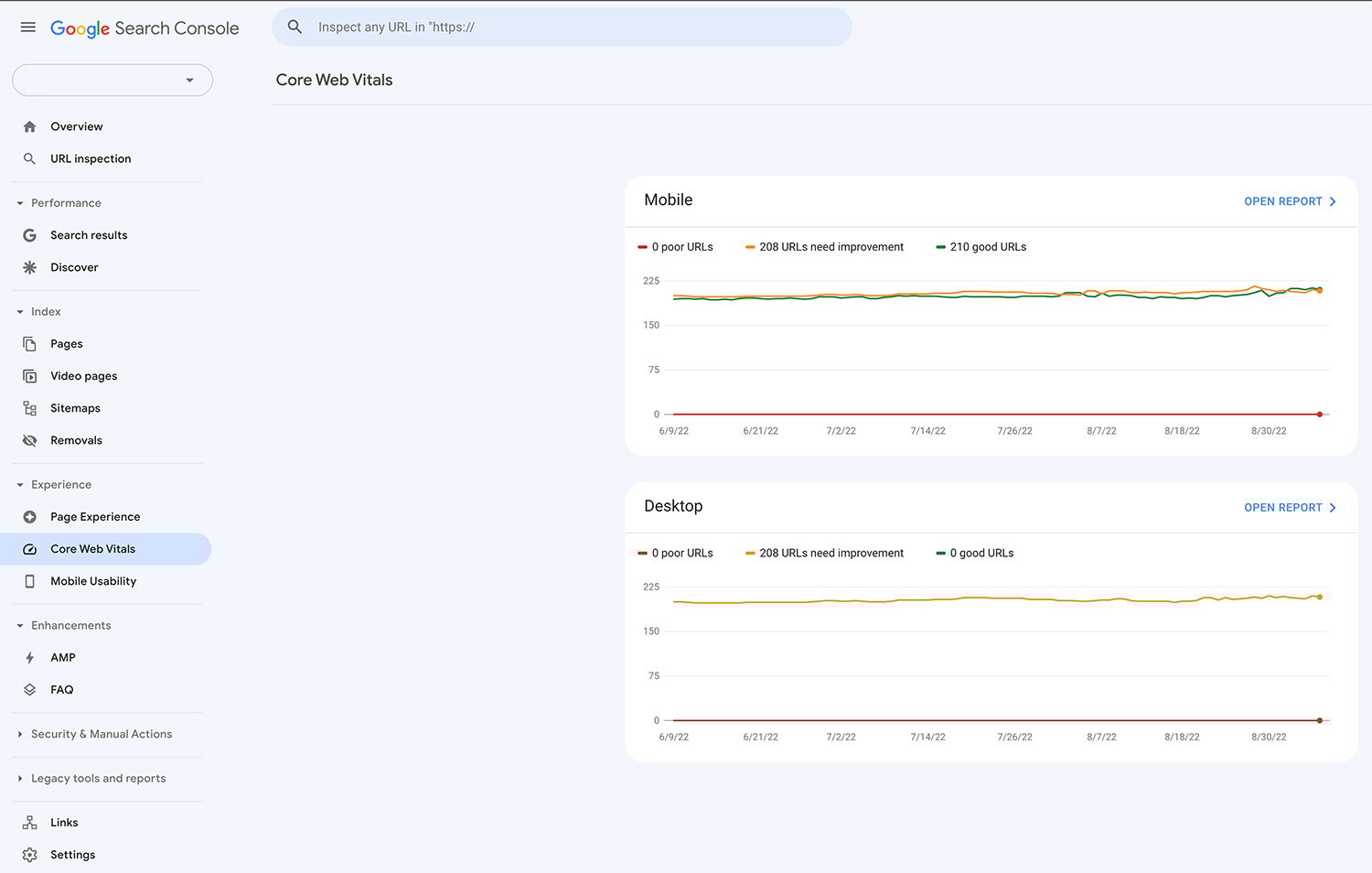
Core web vitals highlight where the stack is failing. Hosting problems often show up first as slow LCP and poor TTFB. Use this table to map your measurements to likely hosting issues.
|
Metric |
Good Threshold (2026) |
Warning Sign |
Possible Hosting Issue |
|
Largest Contentful Paint (LCP) |
< 2.5 s |
LCP > 4.0 s on both mobile and desktop |
Slow server disk or CPU, overloaded shared hosting, no CDN for hero images |
|
Interaction to Next Paint (INP) |
< 200 ms |
INP > 500 ms on dynamic pages |
Underpowered PHP/Node/Python workers, insufficient RAM, unoptimized backend queries |
|
Time to First Byte (TTFB) |
< 0.3 s |
TTFB > 0.8 s from multiple test regions |
Crowded shared server, distant data center, high server latency |
|
Overall Load Time |
< 2.0 s |
3 to 7 s despite optimized images and scripts |
Hosting tier too weak for traffic, missing caching layers at server level |
Is Your Slow Site Actually A Hosting Problem?
Not every speed issue is hosting related. Before migrating, rule out obvious front-end problems that a web developer or site owner can fix on any host.
Ask yourself these questions first:
- Have you compressed images and served them in modern formats (WebP or AVIF)?
- Are CSS and JavaScript files minified and deferred or loaded asynchronously?
- Is browser caching configured with proper cache-control headers?
- Have you removed heavy, unused website plugins or themes?
- Are third party scripts (ads, chat widgets, analytics) loaded asynchronously?
Compare the TTFB of your bare static page against the TTFB of your full site. If the bare page loads in under 200 ms but your WordPress site takes 1,200 ms, the overhead is coming from your content management system, plugins, or database queries, not the server hardware. If the bare page itself is slow (over 800 ms), the hosting infrastructure is the problem.
Contact your current web host with specific metrics: TTFB readings, CPU usage graphs, error logs. Gauge the quality of their support response. If they suggest upgrading to a higher plan without investigating root causes, that tells you something about the service provider.
If the bare page is slow and support cannot resolve it, upgrading or switching hosting is your best performance optimization step.
Common Hosting Types And Site Speed
The fastest way to speed up your website is to pick a more suitable hosting architecture. Here is how the major options compare.
|
Hosting Type |
Typical Use Case |
Performance and Site Speed |
Who Should Choose It |
|
Shared Hosting |
Small hobby sites, low-traffic blogs |
Unpredictable; TTFB often 0.8 to 1.5 s at busy times due to noisy neighbors |
Only for early experiments or side projects with little commercial risk |
|
VPS Hosting |
Growing sites needing more control |
VPS hosting provides dedicated resources; TTFB usually 0.3 to 0.7 s with proper tuning |
Technical users comfortable managing their own stack and security |
|
Cloud Hosting |
Apps facing variable or global traffic |
Scales up under load; regional instances keep latency low worldwide |
Businesses expecting spikes, SaaS apps, multi-region audiences |
|
Dedicated Server |
High-traffic sites with predictable load |
Consistent high performance; TTFB can be under 0.2 s with NVMe storage |
Large ecommerce or content sites needing full control and power |
|
Managed WordPress Hosting |
WordPress-only sites that value simplicity |
Stack optimized for PHP and core web vitals; built-in caching and CDN |
Agencies, bloggers, and stores that want speed without server admin work |
How A Faster Hosting Stack Improves Core Metrics
Fast hosting directly improves TTFB by reducing the time the origin server spends processing each request. With faster CPU and more worker processes, PHP-FPM or Node can handle user requests without queuing, which also improves INP on interactive pages.
Using NVMe SSD storage enhances data transfer speeds for hosted sites. Database queries that power dynamic pages (product catalogs, dashboards, cart calculations) complete faster when random reads take under 1 ms instead of 10+ ms on spinning disks. This directly improves LCP for pages where the largest contentful element depends on database-driven content.
Server-level caching is one part of site speed optimization, which combines caching with hosting improvements to improve website load times by eliminating repeated computation. Full-page caching, object caching with Redis or Memcached, and opcode caching (PHP OPcache) all reduce server load. A nonprofit migration case study showed load times dropping from 6 seconds to under 2 seconds after implementing Redis cache and tuned PHP-FPM pools on a new host.
Consistent response times also help analytics, A/B tests, and SEO signals settle accurately. When web performance fluctuates wildly on an overloaded shared server, your conversion rate data becomes noisy and unreliable. Stable hosting produces cleaner data for business decisions.
Use A Content Delivery Network To Cut Distance And Latency
A content delivery network is a distributed network of edge servers that cache and serve your static website content from locations close to distant users. A CDN reduces network latency by caching content globally, so a visitor in Tokyo does not wait for a round trip to a server in London.
Content Delivery Networks (CDNs) cache content on global servers. Typical CDN-accelerated assets include:
- Images, CSS files, and javascript files
- Web fonts and icon libraries
- Sometimes full HTML for cached versions of popular pages
- Video and large downloadable files
Pairing a fast origin server with CDN integration is essential for a truly fast website. Without a fast origin, cache misses and dynamic content still load slowly. With both in place, the CrucianPoint case study showed 20 to 50% faster load times and a full GTmetrix grade improvement after switching to managed hosting with edge caching and CDN services.
Choose a CDN integrated into your hosting platform when possible. This simplifies configuration, reduces the chance of cache conflicts, and keeps your optimization techniques consolidated. Many managed hosts now bundle CDN at no extra cost.
Hosting Features That Directly Affect Site Speed
Use this table as a checklist when comparing hosting offers or reading plan descriptions.
|
Hosting Feature |
Impact On Site Speed |
Importance |
|
NVMe SSD Storage |
Accelerates database queries and file reads, improving backend response and LCP |
Essential for busy sites and modern ecommerce |
|
HTTP/2 / HTTP/3 Support |
Using modern protocols like HTTP/2 or HTTP/3 enhances data transfer speed; allows multiplexing of HTTP requests so multiple files load faster in parallel |
Essential for asset-heavy sites |
|
Integrated CDN |
Delivers static assets from nearby edge nodes, cutting latency for distant users |
Essential for international audiences |
|
Server-Level Caching |
Serves pre-rendered HTML and cached objects, lowering TTFB under load |
Essential for WordPress and other CMS platforms |
|
Latest PHP / Runtime Versions |
Improves code execution speed and reduces CPU load for dynamic pages |
Highly recommended for all dynamic sites |
Clean Up Your Site Before Or After Migrating Hosting
A move to faster hosting is the right time to streamline themes, website plugins, and front-end assets. Otherwise, bloat simply wastes the new performance headroom.
Concrete cleanup actions:
- Audit installed plugins and remove anything inactive or redundant. Fewer wordpress plugins means fewer HTTP requests, lighter CSS and JavaScript bundles, and less CPU time on the hosting server.
- Remove unused themes. WordPress loads functions.php for the active theme, but leftover themes still consume disk space and create update overhead.
- Consolidate overlapping functionality. If two plugins both add schema markup or both handle caching, pick one and remove the other.
- Clean the database: remove old post revisions, expired transients, orphaned metadata, and unused tables. A bloated database slows queries and increases server load.
Safe cleanup tasks for non-technical website owners:
- Delete inactive plugins and themes from the WordPress dashboard
- Run a database optimization plugin (after backing up)
- Remove unused slider images or media library files
- Update PHP to the latest supported version via your hosting panel
- Always take a full backup before removing plugins or themes
Image Optimization On A Faster Host
Even with premium hosting, oversized images can dominate page weight and ruin loading speed. Images often account for over 50% of total page weight, and nearly 39% of visitors abandon sites if images load too slowly.
Optimizing images can reduce file size without noticeable quality loss. Compressing images using tools like ShortPixel, Imagify, or built-in host pipelines cuts bytes without visible degradation. Using WebP or AVIF formats can reduce image file size by 30 to 70% compared to JPEG or PNG at similar perceptual quality.
Responsive images matter for mobile users. Use “srcset” attribute and “size” attribute so browsers fetch only the resolution needed for a particular page on a given device, rather than serving a 2000px-wide image to a phone screen.
Lazy loading images can improve initial load times by deferring off-screen images. Lazy loading can also improve Largest Contentful Paint by allowing the browser to prioritize above-the-fold content. Most modern WordPress websites support native lazy loading for images and iframes via the loading="lazy" attribute.
Some managed WordPress hosting and optimization services now provide integrated image optimization pipelines that run at the edge or server side, converting and resizing images automatically at upload time.
Reduce HTTP Requests, And Let Your Host Deliver Assets Efficiently
Each CSS file, javascript file, image, web font, and third-party widget generates additional HTTP requests, adding overhead to every page load time. On faster hosting with HTTP/2 or HTTP/3 support, the penalty per request is lower because of multiplexing, but hundreds of unnecessary requests will still slow the site.
Steps to reduce request count:
- Combine small CSS or javascript files into fewer bundles when sensible
- Remove unused web fonts and icon libraries
- Trim third party scripts: evaluate whether every analytics tag, chat widget, and social embed is necessary
- Subset fonts to include only the characters your site actually uses
Performance optimization tools like WebPageTest show waterfalls indicating which HTTP requests hold back initial rendering. Target the requests that block first paint or LCP first; defer everything else.
Hosting providers sometimes offer automatic bundling, compression (gzip or Brotli), and caching mechanism features for static assets. Enable these in your hosting dashboard. They often produce measurable gains without any code changes.
Code Optimization, CSS And JavaScript On High-Performance Hosting
Minifying code can speed up page loading times by removing whitespace, comments, and unnecessary characters from HTML, CSS, and javascript files. The file size drops, which helps especially on constrained mobile connections.
Defer and async loading strategies for non-critical scripts prevent them from blocking initial paint. Place defer on scripts that do not need to run before the page renders. This interacts well with a fast host and CDN: the server delivers the HTML quickly, and the browser renders visible content before executing deferred scripts.
Remove unused CSS and javascript, especially from heavy themes and page builders. Tools like PurgeCSS can strip rules that no web page on your site actually uses, reducing main-thread work and improving INP.
WP Rocket implements 80% of web performance best practices out of the box, including minification, defer, and caching. Some managed WordPress hosting platforms provide similar built-in code optimization or integrate with specific optimization services to simplify setup.
Test each optimization step in staging first. Aggressive minification can sometimes break layouts or functionality on a complex WordPress site, so verify forms, menus, and interactive elements before pushing changes live.
Use Browser Caching And Server Side Caching Provided By Your Host
Browser caching stores static resources locally on the visitor's device, so repeat visits require fewer downloads and HTTP requests. Set cache-control and expires headers via your hosting panel or .htaccess / nginx configuration so that images, CSS and JavaScript files, and fonts can be reused for days or weeks.
Caching can make subsequent page loads almost instant for returning visitors. For a particular page that rarely changes, setting a 30-day cache lifetime for static assets means the browser skips re-downloading them entirely on the next visit.
Server-side caching serves static HTML instead of regenerating pages from database queries on every request. The three main layers:
- Full-page caching: stores the complete rendered HTML; the hosting server returns a cached version without running PHP at all
- Object caching: stores database query results in memory (Redis or Memcached), reducing repeated database hits
- Opcode caching: PHP OPcache compiles scripts once and reuses the compiled version, cutting CPU work per request
Caching plugins can reduce server load by serving static copies of pages. A good caching plugin combined with server-level object and opcode caching covers both new and returning visitors. Combining browser caching on the client with strong server side caching at the origin transforms perceived load time across both audiences.
After content updates, theme changes, or plugin installations, clear your caches. Most managed hosts and caching plugins offer one-click purge. Set shorter TTLs for assets that change frequently (like homepage HTML) and longer TTLs for stable resources (like logo images and font files).
Managed WordPress Hosting vs Generic Hosting For Speed
Managed WordPress hosting means the service provider handles updates, security, caching, and performance optimization specifically for WordPress. The server stack is preconfigured for PHP, MySQL/MariaDB, and the WordPress core.
Generic shared or VPS hosting leaves the user to install and maintain their own stack and optimization services. That means manually configuring caching layers, updating PHP, tuning database settings, and managing security patches.
Concrete speed benefits of managed WordPress hosting:
- Preconfigured server side caching (page, object, opcode) tuned for WordPress
- Automatic database tuning and cleanup
- Built-in CDN integration for static assets and sometimes full-page edge caching
- Image optimization pipelines that convert and resize uploads automatically
- Staging environments for safe testing before pushing changes live
- Automatic handling of traffic spikes during seasonal sales or product launches without manual scaling
Website owners who are agencies or non-technical operators often get the best speed-to-effort ratio by choosing a strong managed hosting plan rather than manually managing servers, especially when paired with SEO-friendly website builders for non-technical users. The CrucianPoint case study documents up to 50% performance improvement after migrating from a self-managed VPS to managed WordPress hosting, with no code changes required.
Safe Migration To A Faster Hosting Provider
Moving to a faster host follows a predictable sequence:
- Back up everything: files, database, and configuration. Store backups off-site.
- Set up the new environment: install WordPress (or your CMS), configure PHP version, enable caching layers.
- Migrate to staging: copy files and database to the new host's staging environment. Test all functionality: forms, payment gateways, redirects, SSL, mobile layout.
- Run speed tests on staging: use the same tools (PageSpeed Insights, WebPageTest) and compare TTFB, LCP, and load time to your pre-migration benchmarks.
- Update DNS: point your domain to the new host. DNS propagation can take several hours; schedule the switch during low-traffic windows.
- Monitor post-migration: check speed tests daily for the first week, watch for broken links, SSL warnings, or 404 errors.
Many premium hosts offer free migration services, which reduces downtime and configuration mistakes for a complex WordPress site with many plugins and custom post types, but larger organizations should still follow a structured CRM migration checklist for platforms like HubSpot and consider a free HubSpot implementation assessment to protect critical customer data during broader tech stack changes.
Post-switch verification checklist:
- SSL certificates valid and not expired
- All URL redirects working (301s intact)
- Contact forms and payment gateways functional
- Images and media loading from correct paths
- Third-party integrations (APIs, CRM, email) connected
- Mobile layout rendering correctly
Realistic Hosting Upgrade Scenarios
These scenarios illustrate what website owners can expect when combining a hosting upgrade with basic optimization techniques.
|
Scenario |
Old Hosting |
New Hosting |
Load Time Change |
|
Local service business site |
Shared hosting, no CDN, HDD storage (4.0 s avg load) |
Entry VPS with SSD, basic CDN (2.1 s avg load) |
Approx. 47% faster, noticeable drop in bounce rate |
|
Mid-size WooCommerce store |
Overloaded shared hosting, no server caching (5.2 s avg load) |
Managed WordPress hosting with NVMe, page caching, CDN (2.0 s avg) |
Approx. 62% faster, stable under sale traffic without timeouts |
|
Global content site |
Single EU server, no CDN (US visitors see 6.0 s load) |
Cloud hosting in EU + worldwide CDN (US visitors see 2.3 s load) |
Approx. 60% faster for distant users, improved international SEO visibility |
|
Online course platform |
Untuned VPS, outdated PHP (4.5 s avg load) |
Optimized managed host with latest PHP and object cache (1.9 s avg) |
Approx. 58% faster, smoother video and lesson navigation |
Ongoing Monitoring And Optimization Services After Upgrading Hosting
Speeding up your website design with a faster hosting service is not a one-time task. Continuous monitoring is needed to keep core web vitals and load time in the green as your site grows.
Set up regular automated speed tests using the PageSpeed Insights API or scheduled WebPageTest runs. Pair these with uptime monitors (Pingdom, UptimeRobot) and server metrics from your hosting dashboard. Monitoring CPU and RAM utilization is crucial for improving site performance and catching regressions before visitors notice.
Agencies and larger businesses should consider ongoing optimization services that include log reviews, code audits, and monthly performance reports. Track business metrics like conversion rate, cart abandonment, and form submissions before and after hosting changes to quantify the impact in revenue terms.
Schedule periodic cleanups: remove outdated Wordpress plugins and themes, compress new images, delete unused css files and javascript files, and optimize the database. New features, content, and third-party integrations can quietly erode the gains from a faster host if left unchecked. Treat your current performance numbers as a baseline to protect, not a finish line.
FAQ
How fast should my website load in 2026?
For most business sites, key pages should aim for an overall page load time under 2 seconds on both mobile and desktop. Time to First Byte should ideally stay under 300 ms on a decent connection. Google's core web vitals thresholds treat LCP under 2.5 seconds and INP under 200 ms as "good." Staying in that range across devices is a realistic benchmark for better website performance and strong seo rankings.
Will a faster hosting plan fix all my performance problems?
Faster hosting improves server response times, but heavy images, bloated CSS and JavaScript, and too many third party scripts can still make a fast server feel slow to mobile users. Fast hosting improves Time to First Byte, but website speed optimization requires treating hosting as the foundation and combining it with front-end optimizations and caching. Think of it as two halves: the hosting server handles the backend, while image optimization, code cleanup, and caching handle the frontend.
Do I really need a CDN if I already moved to better hosting?
If your audience is strictly local or regional and your origin server sits in the same geography, a high-performance host might be enough. For national or global audiences, a content delivery network is strongly recommended. CDN services are particularly valuable for large media libraries, web fonts, and other static assets that otherwise travel long distances on every request. They also reduce server load on your origin server by offloading repeated asset delivery.
How can I tell if it is time to leave shared hosting?
Look for these signs: frequent slowdowns at peak times, TTFB tests over 800 ms from several locations, resource limit warnings from your host, and support responses that amount to "please upgrade" without investigating. Any serious ecommerce, membership, or content business where user engagement and revenue depend on website's loading speed should plan to move beyond basic shared hosting as traffic grows. A slow website with inconsistent response times will hurt search engine rankings and user experience simultaneously.
Is managed WordPress hosting worth the extra cost?
For WordPress users who value their time and do not want to manage servers, managed WordPress hosting often pays for itself through higher conversion rates, better SEO, and fewer outages. A 1-second delay can drop conversion rates by 7.2%, which means even small improvements in WordPress site speed translate into measurable revenue. It is especially cost-effective for agencies, online stores, and content sites where the cost of lost sales from a slow site exceeds the monthly hosting premium.
Share this
Subscribe
Recent Posts
NEED TO INCREASE REVENUE?
Improve Your Marketing ROI
Let’s talk and see how we can help you scale a steady stream of new leads, customers and revenue.
